

Communication
Ensuring each and every stakeholder is kept up-to-date with a pupil's progress and development in the academy is one of our highest priorities. The most important stakeholders in a child's education are their parents/ carers. Therefore, the academy utilises, and has created, a number of solutions to ensure that you are informed of developments as soon after they occur in order for any resulting conversations to have the most impact.
To ensure we have up-to-date information on our system, if you have had any address or contact detail changes, please click here and complete this Microsoft Forms questionnaire.
Arbor parent app
When a parent logs into the Parent Portal or the Parent App they can see details about their children that attend one school using Arbor. If they have two children attending the same school, they can switch between students in the app or on the website.
But how does the Parent Portal work for parents with children at more than one school who use Arbor?
If a parent has children at more than one school their experience of logging into the Parent Portal and Parent App will be a little different. If they use the same email address on their profile at both schools they will be asked which school they want to log into when they visit login.arbor.sc or go to log into the Parent App.
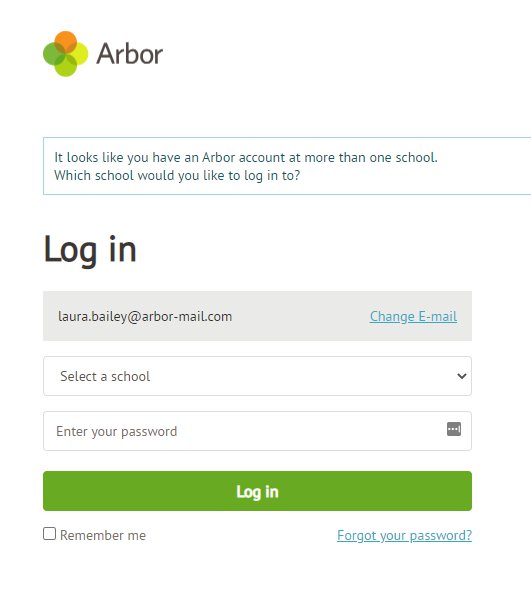
Please note: The parent won't be able to switch between students on the Parent Portal or Parent App if the students attend two different schools. This is because each guardian at each school has a separate profile/account.
This means that if a parent has two students at different schools, they will have two separate accounts, and Arbor won't link these accounts, other than at the login stage on the Parent App or on the login.arbor.sc page. To view the information of each child at their respective schools, the guardian will need to log out of one account and into another.
Using the Parent Portal for the first time and setting a password
A parent can access the Parent Portal to log in for the first time in a few different ways:
- By navigating to login.arbor.sc and choosing Forgotten your password?
- By navigating to the school's URL, for example, if your school is called Sunnyville your URL might be Sunnyville.uk.arbor.sc. Then clicking on First Time Logging In?
- By clicking on a link in a Welcome to Arbor or reset password email. You can find more information about sending out welcome emails to parents here.
When using option 3, Arbor will already know which school the new password is for.
When using options 1 or 2, if a parent has a profile at two schools with the same email address they'll see a drop-down where they can choose which school they're wanting to set a password for.
Classcharts
Communication regarding your child's attendance, behaviour, corrections and timetable can be found via the ClassCharts app. Once your child enrols with us, we will provide you with the information to set this account up.
To find out more information about the ClassCharts app, please follow this link here.
If you have any queries about same-day corrections and our expectations, please have a look at our behaviour policy. Alternatively, you can get in touch with your child's year team or the academy.
Parents' evening booking system
A letter will be sent home via email with each pupil notifying when a parent consultation evening has been arranged. Appointments can be made by following this link. Alternatively, pupils will be able to book an appointment directly with the class teacher.
Parent bulletin
We use Padlet, a collaborative web platform that allows users to upload, organise and share content via visual boards. The board will be organised as follows:
- Notices for All
- Careers Information
- Year 7–11 (separate boards)
- Sixth Form
Here is where important updates will be added. The head and Deputy Head of Years will add information that they feel is important to share with parents/ carers in a more informal way. The share link will be sent every Friday via email.
If you would like to discuss anything on these padlets in more detail, please email the Year Teams.